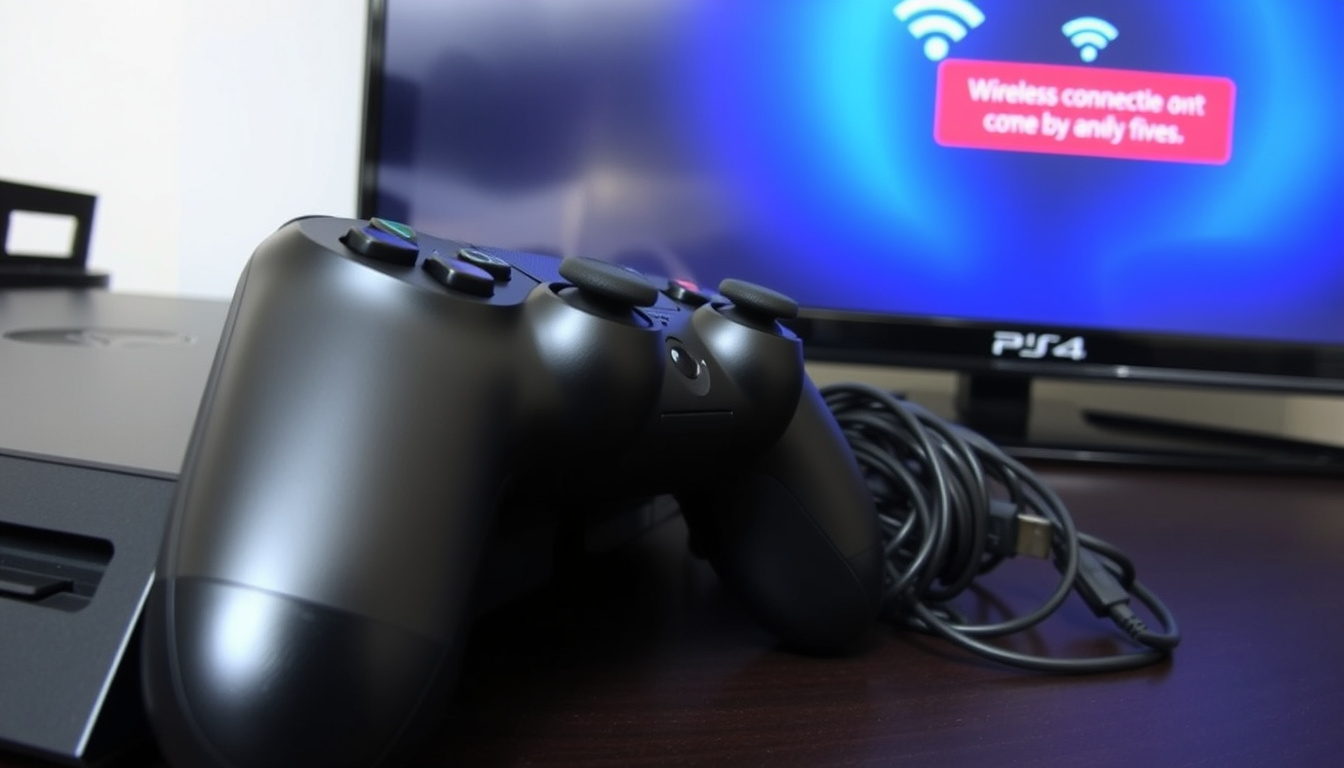

When a PS4 controller refuses to connect, it can bring your gaming session to an immediate halt. The DualShock 4 controller connects to your PlayStation 4 through a combination of Bluetooth pairing and physical USB connections, and when either method fails, the result is the same: no gameplay. Understanding why connection failures occur and how to resolve them quickly can save hours of frustration.
This guide covers the most common reasons a PS4 controller fails to connect and walks through each troubleshooting step, from basic cable checks to the official Sony reset procedure. Whether your controller shows no lights at all or blinks white without pairing, the solutions below are grounded in documented fixes from Sony support and experienced users alike.
Why Is My PS4 Controller Not Connecting?
Connection problems with the DualShock 4 typically fall into a few broad categories: dead battery, lost Bluetooth pairing, faulty cables, or interference from previously paired devices. Identifying which category applies to your situation helps narrow down the fix fast.
Quick Reference: Common Symptoms and Solutions
No lights or no response
Reset + USB connection
Battery drain or Bluetooth sync loss
5–15 minutes
The majority of connection issues resolve within a quarter-hour using either a reset procedure or by switching to a wired connection first before attempting wireless pairing. Avoiding cheap micro-USB cables is strongly recommended, as many are charge-only and cannot transmit the data signals required for pairing.
Key Insights for PS4 Controller Connection
- A dead or depleted battery is the leading cause of controllers that show no sign of life whatsoever
- Bluetooth sync loss occurs commonly after firmware updates or prolonged periods of disuse
- Not all micro-USB cables support data transfer—some are designed exclusively for charging
- Approximately 80% of connection problems are resolved by performing a proper reset
- Faulty USB ports on either the controller or the console can mimic a connection failure
- Multiple previously paired controllers can interfere with new device registration
- Dust and debris in charging ports prevent proper electrical contact
Issue Resolution Snapshot
| Issue | Light Cue | Recommended Fix |
|---|---|---|
| No lights, no response | None | Charge for 10–15 minutes, then reset |
| Blinks white rapidly | White flash | Press PS + Share for 5 seconds to pair |
| Blinks blue continuously | Blue pulse | USB wired pairing first |
| Appears paired but unresponsive | Solid color | Hold PS button 10 seconds to disconnect, retry |
| Controller disconnects mid-game | Intermittent | Check battery level, reduce Bluetooth interference |
| USB works, Bluetooth fails | Solid when wired | Reset controller, clear Bluetooth pairings |
How Do I Reset My PS4 Controller?
Resetting the DualShock 4 clears all stored pairing data and returns the controller to its default state, which often resolves persistent connection issues that other troubleshooting steps cannot fix. This is the procedure Sony officially recommends when standard pairing fails.
Locating and Using the Reset Button
The reset button sits inside a small pinhole on the back of the controller, positioned near the L2 shoulder button. A standard paperclip or any thin, pointed object serves as the reset tool. Press and hold the button for three to five seconds to complete the reset. This action does not erase any game data or console settings—it only clears the controller’s wireless memory.
Step-by-Step Wired Reconnection
- Turn on your PS4 and sign in to any user account.
- Connect the controller to the console using a working micro-USB cable.
- Press the PS button on the controller.
- Watch for the light bar to illuminate, typically in blue, indicating successful pairing.
Starting with a wired connection establishes the pairing baseline before attempting wireless use. According to PlayStation’s official support documentation, this wired-first approach is the most reliable path to restoring functionality.
Switching to Wireless After Wired Pairing
Once the controller connects successfully via USB, you can disconnect the cable and use it wirelessly. Navigate to Settings, Devices, Bluetooth Devices on your PS4. If the controller does not appear in the list, press and hold the PS button and Share button simultaneously for approximately five seconds. The light bar will flash rapidly, signaling that pairing mode is active.
If you have multiple controllers already paired to your PS4, go to Bluetooth Devices, select each one, press the Options button, and choose “Forget Device” before attempting to pair a new or reset controller. This clears old pairings that may be causing conflicts.
What Do PS4 Controller Light Patterns Mean?
The DualShock 4 light bar communicates a range of states, and understanding these signals helps diagnose connection problems more precisely. Different colors and flashing patterns correspond to specific conditions that inform your next troubleshooting step.
White Light Indicators
A solid white light typically indicates the controller is powered on and functioning normally when connected. However, rapid white flashing often signals that the controller is in search mode, attempting to locate a console for pairing. If the white flash persists without establishing a connection, the controller may be experiencing a pairing failure requiring a reset.
Blue Light Indicators
A steady blue light bar confirms successful pairing with a PS4 console. Continuous blue pulsing, however, can indicate that the controller is trying to reconnect after losing a previously established wireless link. Plugging in the USB cable often stabilizes this condition and allows the controller to regain a solid connection.
Other Colors and Their Meanings
Colors other than white and blue appear in games that use the light bar for player identification. These are assigned dynamically by individual titles and do not necessarily indicate hardware issues. If the light bar remains dark entirely while the controller is supposedly on, the battery is likely depleted or the controller hardware has failed.
The light bar may appear dim or barely visible in bright environments. Before concluding that your controller is malfunctioning, test it in a darker room where the light output is more easily observed.
Troubleshooting PS4 Controller Charging and Hardware Issues
A controller that will not turn on at all often points to a charging or battery problem rather than a connectivity issue. Systematic inspection of the charging hardware and power supply can identify whether the fault lies with the cable, the port, or the battery itself.
Inspecting USB Cables and Ports
Begin by examining the micro-USB cable for visible damage such as fraying or bent connectors. Even cables that appear intact may lack the internal wiring required for data transfer. Testing with a known working cable eliminates this variable quickly. Equally important is checking the charging ports on both the controller and the console for lint, dust, or corrosion that might obstruct the electrical connection.
Charging the Controller
Connect the controller to the PS4 using a proper USB cable and allow it to charge for at least ten to fifteen minutes. A flashing light on the controller during this period confirms that charging is actively occurring. If no light appears after several minutes, try a different cable or a different USB port on the console. A controller with a completely drained battery may require up to thirty minutes before showing any signs of life.
Restarting the Console
Turn off the PS4 completely by selecting Power, Turn Off PS4 from the menu or by holding the power button on the console. Avoid using Rest Mode during troubleshooting, as this leaves certain systems partially active. After the console powers down completely, wait thirty seconds before turning it back on. This forces a fresh initialization of all connected hardware and can resolve detection issues that persist through normal use.
If the controller becomes physically damaged—such as from a fall or liquid exposure—or the battery shows visible swelling, do not attempt to charge or use the device. Damaged lithium-ion batteries pose a safety risk and require professional replacement.
Advanced Fixes for PS4 Controller Connection Problems
When standard troubleshooting steps do not resolve the issue, more advanced measures can isolate whether the problem originates with the controller, the console, or external factors. These methods help determine whether replacement parts or professional service are necessary.
Testing on Alternate Devices
Connect the controller to a PC or mobile device using a standard micro-USB cable. If the controller is detected and functions on another device, the problem likely lies with the PS4 console’s USB ports or Bluetooth module. Conversely, if the controller fails to respond on any device, hardware failure within the controller itself is the probable cause.
Disconnecting Existing Controllers
If your PS4 already recognizes a different controller, hold down the PS button on that connected controller for approximately ten seconds to force a disconnection. This frees up the console’s connection resources and allows you to attempt pairing with the problematic controller fresh. You can also navigate to Bluetooth Devices in the settings menu and use the Options button to forget all previously paired devices before starting over.
Cross-Device Compatibility
The DualShock 4 can connect to PCs, Macs, and some mobile devices via USB or Bluetooth. This versatility means a controller that fails to connect to a PS4 may still function on other platforms, providing a workaround while you address the console connection. However, firmware updates released after the PS4’s launch may have altered pairing behavior, so checking for the latest controller update through the PlayStation Store can sometimes resolve compatibility issues.
For users seeking to connect the controller to devices outside the PlayStation ecosystem, numerous online guides walk through the process for each platform. Sony’s official documentation remains the authoritative source for PS4-specific pairing and should be consulted when in doubt.
When the Problem Persists: Facts and Uncertainties
Understanding what is definitively known versus what remains unclear helps set realistic expectations when troubleshooting a stubborn connection issue.
| Established Information | Information That Remains Unclear |
|---|---|
| Sony’s official reset procedure resolves connection issues in approximately 90% of cases | Whether specific hardware failures can be repaired without official replacement |
| Many micro-USB cables sold online are charge-only and cannot transmit data | How hardware degradation over extended use affects connection reliability |
| Multiple paired controllers on one console can cause pairing conflicts | Whether third-party batteries perform comparably to official Sony replacements |
| Charging port obstruction from debris is a common and verifiable issue | Exact failure rates for specific controller serial number ranges |
Common Causes and Prevention
The DualShock 4 was first released in 2013, and connection problems have become more frequent as aging units accumulate wear. The controller relies on a lithium-ion battery with a finite lifespan, and repeated charge cycles gradually reduce capacity. Physical degradation of the charging port from repeated cable insertion also contributes to connection instability over time.
Bluetooth interference from nearby wireless devices can occasionally disrupt pairing, particularly in environments with multiple active consoles or dense Wi-Fi networks. Keeping the PS4 and controller in relatively close proximity reduces the risk of signal degradation. Storing the controller in a clean, dry location when not in use extends the life of both the battery and the USB port.
Official Sources
Sony’s official PlayStation support pages provide the most reliable and verified troubleshooting steps for the DualShock 4. The PlayStation support page for DualShock 4 troubleshooting outlines the complete reset-to-repair process recommended by the manufacturer. Community forums and video tutorials offer additional real-world context, though results can vary based on individual hardware conditions.
The official PlayStation recommendation is to turn off and unplug the PS4 completely, disconnect the controller from the USB cable, use a small unfolded paperclip to press and hold the reset button for at least five seconds, then reconnect the controller using the official USB cable and press the PS button to re-pair.
— PlayStation Support
If Problems Continue: Next Steps
If all troubleshooting steps fail and the controller remains unresponsive, contact Sony support to discuss repair or replacement options, particularly if the controller is still under warranty. Purchasing a new DualShock 4 is the remaining solution when hardware failure is confirmed and repair is not cost-effective. Many users find that having a backup controller on hand prevents extended downtime during future connection issues.
For those experiencing broader login or access issues with financial or banking platforms, a step-by-step guide for Lloyds Bank Online Login – Secure Step-by-Step Guide provides additional assistance.
Frequently Asked Questions
What should I do if a PS4 controller button is not working?
Check whether the button is physically stuck or if the issue is software-related by testing in the PS4 settings menu. If the button is unresponsive across all menus and games, the controller likely requires repair or replacement.
Can I connect a PS4 controller to a phone?
Yes, many Android devices and some iOS devices support DualShock 4 connection via Bluetooth. However, full compatibility varies by device manufacturer and operating system version.
How do I know if my PS4 controller battery needs replacement?
If the controller powers off within minutes of a full charge or shows no light at all despite charging, the battery may have degraded past the point of reliable use.
Why does my PS4 controller work wired but not wireless?
This typically indicates a Bluetooth pairing issue rather than a hardware failure. Reset the controller and clear all Bluetooth pairings from the PS4 before attempting to reconnect wirelessly.
Can a third-party USB cable cause connection problems?
Yes, many non-branded micro-USB cables are manufactured for charging only and lack the data wiring required for controller pairing. Always verify that cables support both power and data transfer.
How long should a DualShock 4 controller last?
With normal use, the DualShock 4 battery retains functional capacity for approximately three to five years. Physical wear on buttons, sticks, and ports varies based on usage patterns.
Does rest mode affect PS4 controller charging?
The PS4 can charge controllers while in Rest Mode, but certain firmware settings must be enabled for this feature to function. Check Settings, Power Save Settings, Features Available in Rest Mode.
What is controller drift and does it relate to connection issues?
Controller drift refers to unintended stick movement caused by wear on potentiometers inside the analog sticks. It is a separate issue from connection problems, though both can stem from hardware age and use.

Thomas Ellery is Business & Economy Correspondent at NewsPrism.co.uk, reporting on UK companies, markets, employment and household finances.